Nothing uploaded
Crop and encode stay in the tab. Private photos never leave this device for this tool — the differentiator vs cloud croppers.
Free · Browser-local · No upload
Trim photos to any rectangle or locked aspect ratio. Files stay on your device.
Need exact pixels after cropping? Try the image resizer. Want a round avatar instead? Use circle crop. Or rotate first, then browse all Fogkits tools.
No image? Try one of these
Try a sample below, drag the crop frame on Original, then export JPG/PNG/WebP. Files stay on this device — nothing is uploaded.
Free browser tool. Rectangular crop with aspect presets. Typical limit 25 MB (12 MB on low-memory devices). Your image never leaves this device.
Files stay on this device. Fogkits does not upload images for this tool — the rectangle, preview, and encode all happen in your browser. No account, no credits, no ads.
Why choose Fogkits
Frame the shot you need without a cloud hop — same workspace chrome as Image Resizer and Converter.
Crop and encode stay in the tab. Private photos never leave this device for this tool — the differentiator vs cloud croppers.
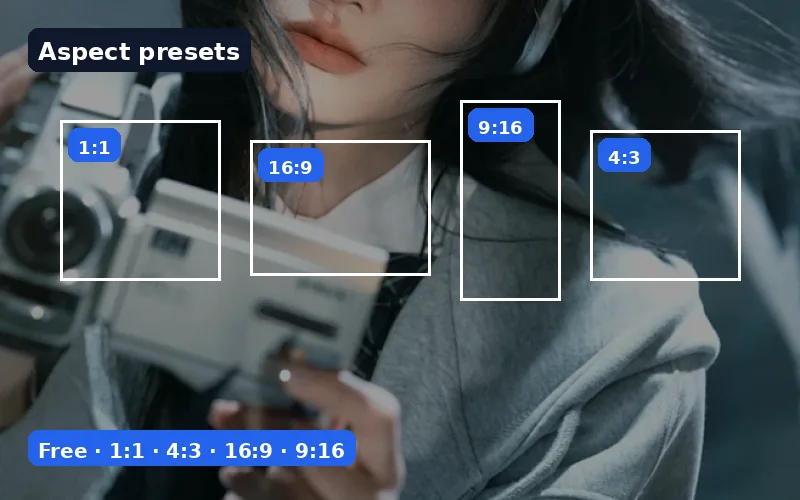
Drag any rectangle, or lock 1:1, 4:3, 3:2, 16:9, 9:16, or Custom W×H for social and video frames.
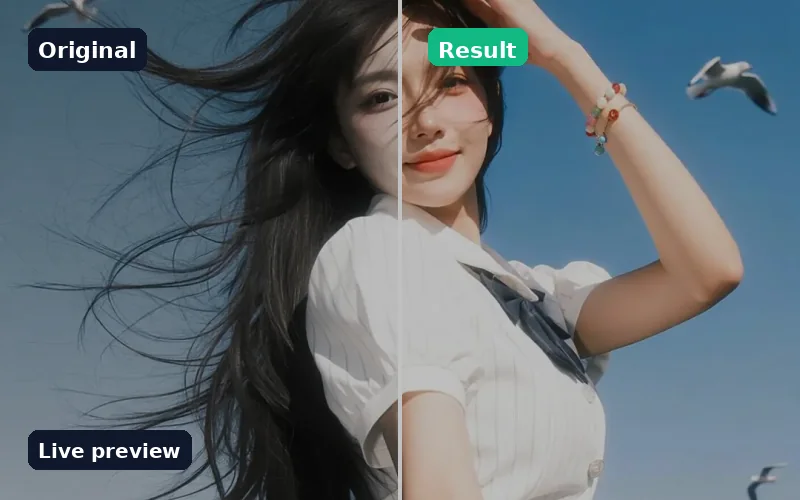
Adjust the crop on Original, then switch to Result to confirm the export before you download.
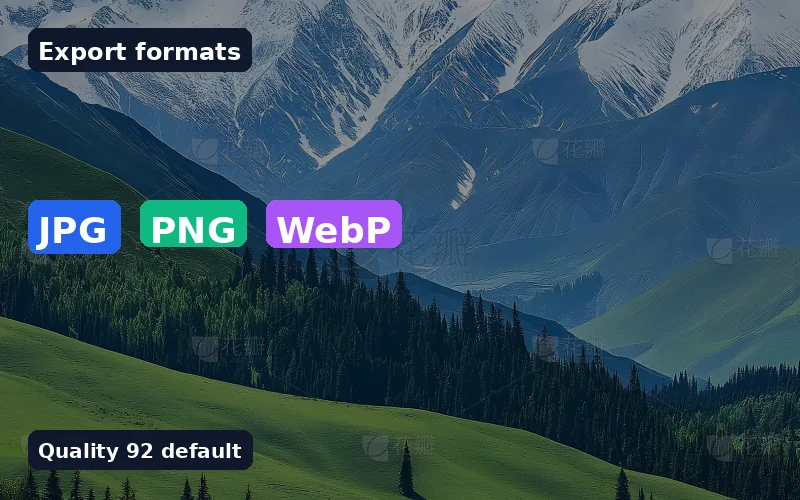
Default JPG at quality 92. Switch to PNG for transparency or WebP when the page wants a modern mime type.
Crop up to 20 images with one recipe, download selected, or Download all as a ZIP when zipArchive is available.
Crop the composition first, then open Image Resizer for exact pixels — or Converter / Compressor for format and size.
Proof
Cloud croppers ask you to upload first. Fogkits keeps the file on this device, lets you drag a rectangle (or lock an aspect), and hands you JPG/PNG/WebP you can attach anywhere. The still below is illustrative — drop your own image above for a live run.
Aspect presets
Free, 1:1, 4:3, 3:2, 16:9, 9:16, Custom W×H.
JPG default
Quality 92 — widely compatible export.
Drag & resize
Handles on the Original preview frame the crop.
Batch ZIP
Up to 20 images when zipArchive is in the build.
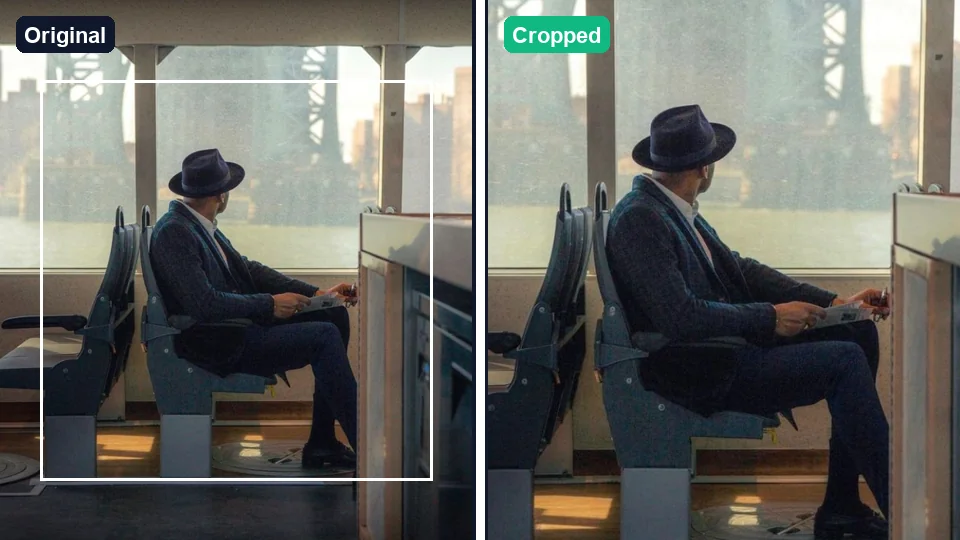
Illustrative still. Drop a real photo above to crop in your browser.
Use cases
Square avatars, 16:9 covers, and trimming edge clutter — without leaving this device.
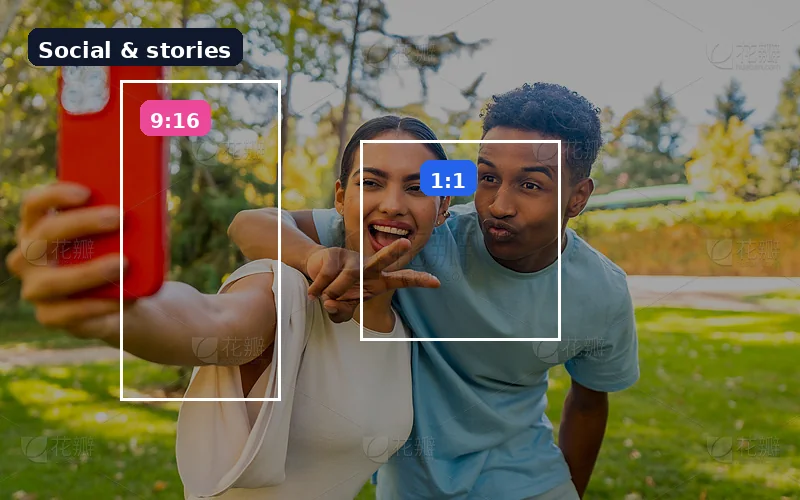
Social & stories
Frame Instagram posts and stories without uploading the album to a cloud cropper — presets keep the ratio honest.
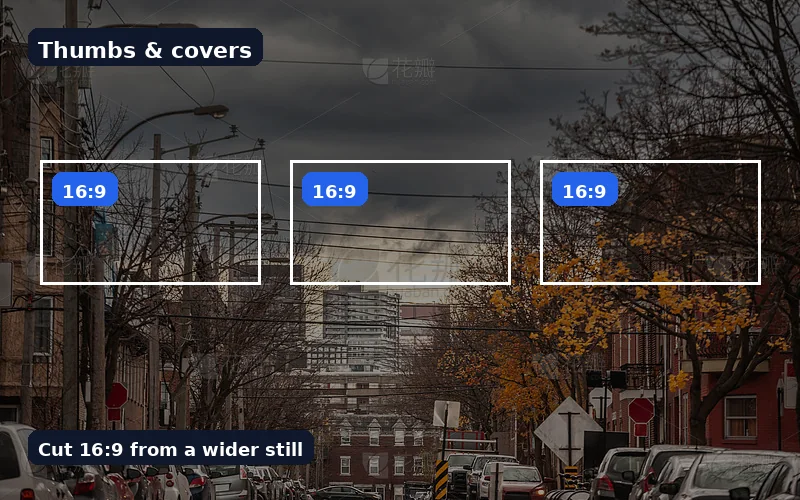
Thumbnails & video
Pull a clean 16:9 from a wider still for YouTube thumbs or slide decks, then resize if the platform wants exact pixels.
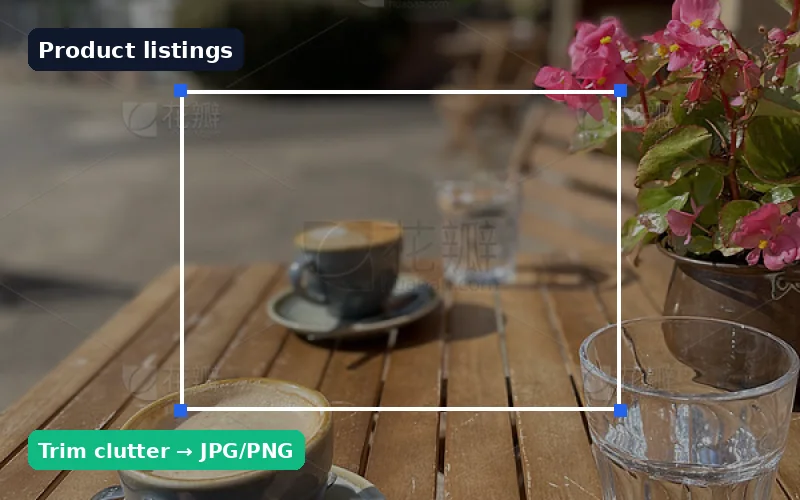
Product & forms
Remove clutter around a product or headshot, export JPG/PNG, then compress if the portal has a size cap.
How to use
No account, no queue, no cloud job. Drop files, frame the rectangle, download when Result looks right.
01
Drop JPG, PNG, WebP, or HEIC files onto the cropper. Nothing is uploaded — cropping runs in your browser.
02
Drag and resize the rectangle on the Original preview. Use Free or lock 1:1, 4:3, 3:2, 16:9, 9:16, or Custom W×H.
03
Choose JPG (default), PNG, or WebP, set quality for JPG/WebP (default 92), Crop, then download the Result — or batch up to 20 with ZIP when available.
Drop a photo above, drag the rectangle, pick JPG/PNG/WebP, and download when the preview looks right.
Yes. Fogkits draws the crop rectangle and encodes JPG, PNG, or WebP in your browser. The file never leaves this device for this tool.
Yes. Lock the 1:1 preset for square avatars and profile photos, or drag a freeform rectangle when you need a custom crop.
Use 9:16 for stories and tall posts, or Custom W×H for ratios like 4:5. For a round profile picture instead of a rectangle, open Circle Crop.
Yes. Browser-local crop is free — no account and no credits. Export when the Result preview looks right.
Crop removes edges to change composition. Resize changes pixel dimensions without choosing a new frame. After you crop, open Image Resizer if a platform needs exact width and height.
This page is for rectangular crops. For a circular PNG avatar, use Fogkits Circle Crop — it keeps transparent corners outside the circle.
Free (any rectangle), 1:1, 4:3, 3:2, 16:9, 9:16, plus Custom W×H for your own ratio.
Yes. Add up to 20 images, apply the same aspect and output settings, Crop all, then download selected or Download all as a ZIP when zipArchive is present in the Fogkits build.
Circle crop a photo into a round avatar PNG in your browser. Free, no upload — transparent edges by default.
Open toolResize an image to exact width and height in your browser. Free photo resizer with aspect lock — nothing is uploaded.
Open toolRotate and flip images in your browser. Free 90° rotate, mirror flip, and straighten — no upload required.
Open tool